
AI Coding
How to Install Grok Bot on Desktop and Mobile
Before installing Grok Bot, confirm your plan includes access and your account is not on Privacy Mode (Legacy). On desktop, download the installer for your system and chip architecture and sign in with a Cursor account. On mobile, install from the official app store. Both use the same Bots and the same cloud computer.
Grok Bot installs on two ends, desktop and mobile. On desktop, pick the installer that matches your system and chip architecture, then finish the Cursor account sign-in in a browser. On mobile, get the app from the App Store or Google Play and sign in with the same Cursor account. You see the same Bots and the same cloud computer. Before you install, confirm your plan includes Bot access and your account is not on Privacy Mode (Legacy).
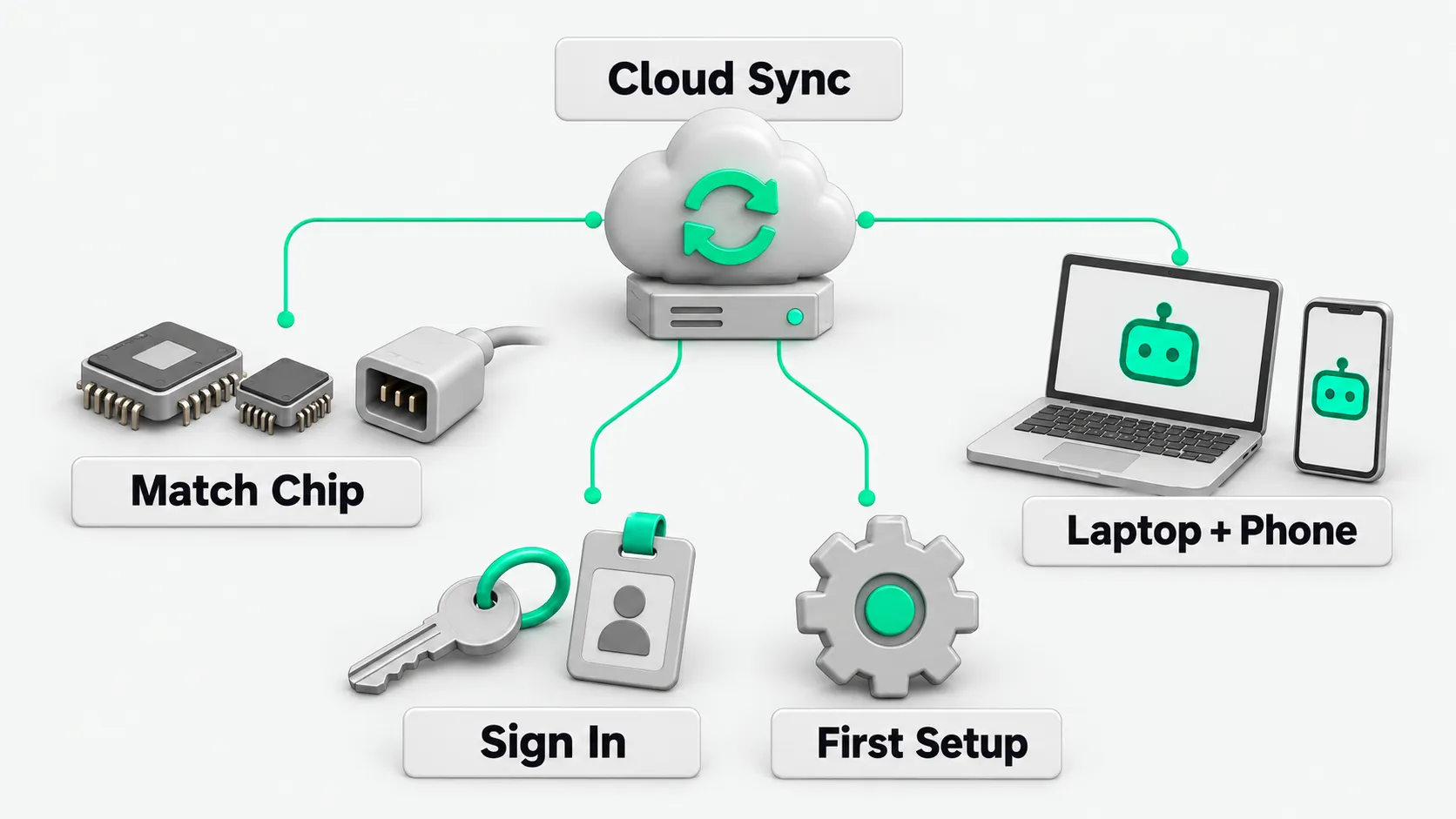
Confirm two things before you install
According to the Grok Bot getting started guide, you need a plan that includes Grok Bot. The desktop app supports macOS, Windows, and Linux. If you are not yet clear on what Grok Bot is for, start with What Is Grok Bot? An AI Agent Guide to Persistent Teammates. Download Grok Bot only from the official page: cursor.com/download/bot. The Linux version is at x.ai/bot.
Grok Bot needs cloud data storage. If your account is on Privacy Mode (Legacy), switch to a supported Cursor data setting first. Otherwise Grok Bot will not start.
Install on desktop by chip architecture
According to the Grok Bot getting started guide, on macOS choose Apple silicon or Intel, download, drag the app into Applications, and choose Open to confirm. To check your chip, go to Apple menu → About This Mac. A Chip line means Apple silicon. A Processor line means Intel. Before you download Grok Bot, check whether your Mac has an Apple chip or Intel, and whether Windows is x64 or ARM.
On Windows, choose x64 or Arm64 and run the installer. To check the architecture, go to Settings → System → About → System type.
The stable Linux builds are under More downloads at x.ai/bot. Use .deb for Debian and Ubuntu, .rpm for Fedora and RHEL, and AppImage for others. Run uname -m in a terminal. x86_64 means x64, and aarch64 means Arm64. Grok Bot checks for updates automatically. You can also check by hand with Check for Updates under Settings → Updates.
Install on mobile and view cloud tasks
According to the Grok Bot mobile docs, iPhone needs iOS 18 or later, iPad needs iPadOS 18 or later, and Android needs Android 9 or later. Download from the App Store or Google Play. Open the app, choose Log In or Sign Up, finish Cursor authentication in the browser, and return to the app. For SuperGrok access, choose Link Grok Account on the access page, link the account in the browser, then choose Finished Linking? Refresh My Status.
The mobile app connects to the same Bots, conversations, Routines, connected apps, and shared cloud computer as desktop. When you close the app, work keeps running in the cloud. On mobile you can view, pause, and delete Routines. Changing schedules, editing instructions, and testing currently need the desktop app.
First launch and preparing the cloud computer
According to the Grok Bot getting started guide, choose Sign in on the welcome screen, finish authentication in the browser, and return to the app. Use a Cursor account. If your company requires SSO, follow the company flow. For SuperGrok access, link it under Settings → Usage & Billing with Get Access with Grok. The first launch has a short walkthrough. The cloud computer is prepared in the background. Grok Bot creates your first Bot, named Grok Bot, and opens a conversation with it. All Bots on the account share this cloud computer. For how isolation works, see Do Grok Bots Share Files? Isolating Bots on One Cloud Computer.
Preparing the cloud computer or updating its image can take a few minutes. Do not close the app until Starting your computer or Updating your computer finishes. If sign-in gets stuck, wait for browser authentication to complete, then switch back to the app.
Grok Bot install: FAQ
Do I have to pay again after installing on mobile?
No. According to the Cursor mobile guide, if your account includes Grok Bot, sign in on the phone with the same Cursor account and it works. Do not buy a second subscription in the phone’s app store. Use the desktop app to update, restore, or reset the cloud computer.
After installing, it keeps saying it is preparing the computer. What do I do?
According to the Grok Bot troubleshooting docs, preparing the cloud computer for the first time or updating its image can take a few minutes. If the progress is still moving, keep waiting. If it fails or stops moving, go in order: choose Retry where the error appears, restart Grok Bot, check for app updates, and if it still cannot connect, choose Update Bot’s Computer under Settings → Computer.
Where do I download Grok Bot, and where is the Linux version?
Download Grok Bot from the official Cursor download page. Mac has Apple Silicon and Intel builds. Windows has x64 and ARM64 builds. The Linux .deb, RPM, and AppImage files are under More downloads at x.ai/bot, each with x64 and ARM64 files.