
AI Coding
Codex Skills: How to Install Them and How to Call Them
Codex skills package a task workflow in a standard folder and run in the Codex CLI, the IDE extension, and the desktop app. You can install curated skills with the official command or write them directly into the repo or a local path. You call a skill by name with a symbol, or the model matches it from its description. Teams manage skills through repo version control and a config file.

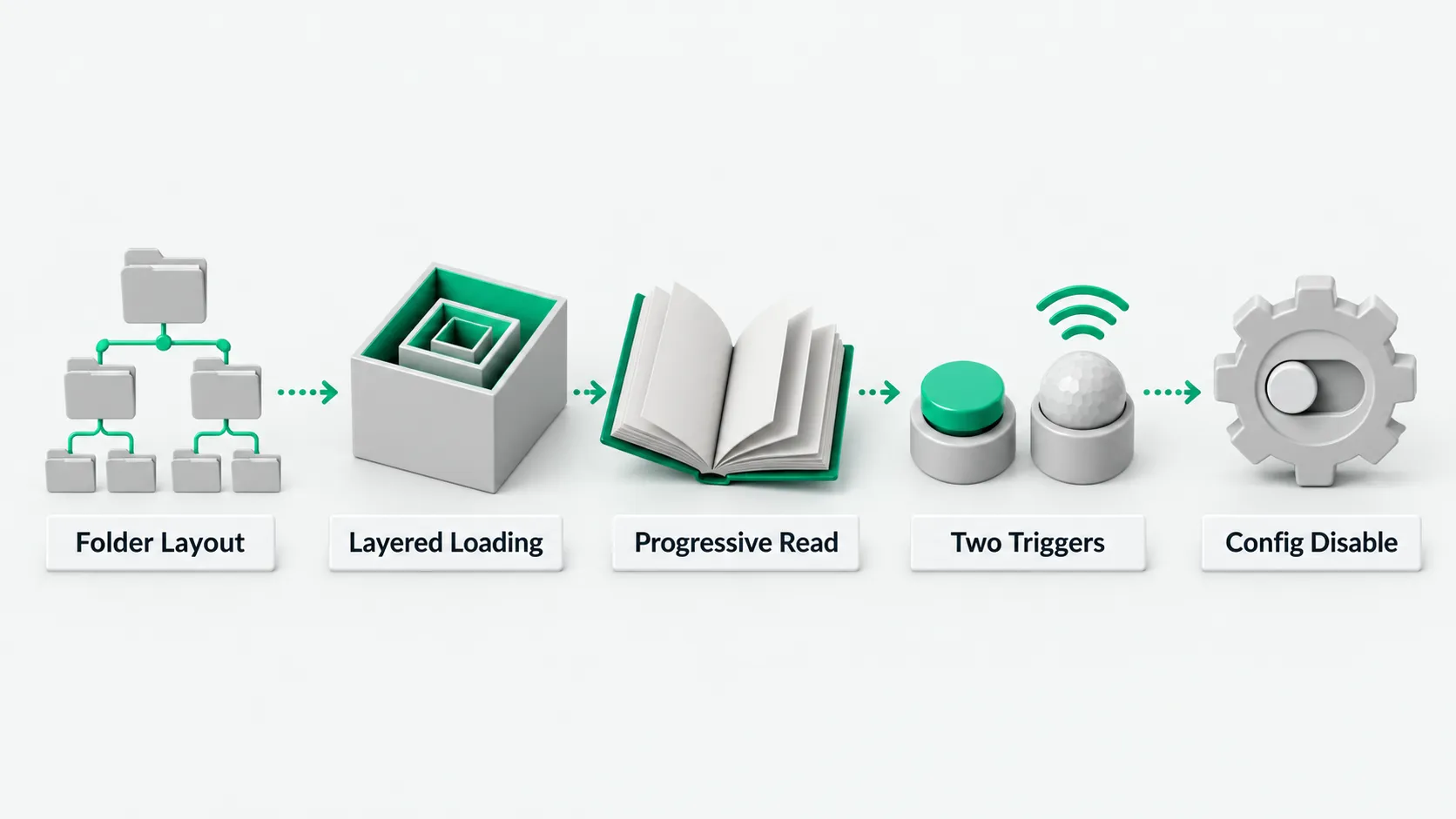
A Codex skill packages workflow instructions and supporting resources in a standard folder. It works the same in the Codex CLI, the IDE extension, and the ChatGPT desktop app. To install, run $skill-installer to get curated skills, or create one by hand in the repo’s .agents/skills or a system path. To call a skill, type $ or /skills to pick it, or let the model match it automatically from its description. For team use, commit the skill folders to the code repo. To turn off a skill you do not need, change the config file.
Skill folder layout and the paths Codex scans
Each skill is its own folder and follows the open agent skills standard. A skill folder must contain SKILL.md, with name and description declared in its frontmatter. Add these as needed: a scripts/ folder for executable scripts, a references/ folder for reference material, an assets/ folder for extra resources, and an advanced config file, agents/openai.yaml. When writing a Codex Skill, keep each skill focused on one specific task. Write plain instructions instead of scripts unless you need deterministic execution or an external tool, and use imperative sentences that state the inputs and outputs.
There are two ways to create a new skill. Type $skill-creator in Codex, and the interactive tool builds a skeleton from the purpose, when it should trigger, and whether it needs scripts. By default it produces an instructions-only file. You can also create the folder by hand and write SKILL.md.
Codex reads skills from four levels:
- Repo level: starting at the current working directory,
$CWD/.agents/skills, it scans each parent folder up to the repo root,$REPO_ROOT/.agents/skills. - User level:
$HOME/.agents/skillsin the current user’s home folder. - Admin level: the global system path
/etc/codex/skills. - System level: built-in skills that ship with Codex, such as
skill-creatorandplan.
Every level supports symbolic links. If skills at different levels share a name, Codex does not merge them. All of them show up in the picker for you to choose from.
Install curated skills with the installer, and how progressive loading works
To install official or curated skills, run $skill-installer in a Codex CLI or IDE session. For example, to connect a task tracker, run $skill-installer linear to install the $linear skill. $skill-installer can also download skills from a specified outside repo. OpenAI positions direct installation as local setup and trial. To share skills you built with others, package them as a plugin first. After installation, Codex detects the change on its own. If the skill does not appear, restart Codex.
To limit context use, Codex loads skills progressively. When a session starts, the model reads only each skill’s name, description, and file path, not the full SKILL.md. Codex reads the full body only when the user calls the skill or the model decides to use it.
By default, the list of skill descriptions takes up at most 2% of the model’s context window. When the context size is unknown, the limit is 8,000 characters. With many skills installed, Codex first shortens the description summaries. If the list is still far over, it leaves some skills out and prints a warning. If a project needs many skills loaded, adjust skills.max_context_tokens in the config file, up to a maximum of 10,000 tokens.
Explicit calls by symbol and implicit triggers by description
There are two ways a Codex skill runs: an explicit call and an implicit trigger.
The user makes an explicit call. In the Codex CLI or IDE extension, type /skills to bring up the skill list, or type the $ character in the input box to open a suggestion menu. For example, typing $linear attaches that workflow to the current task.
The model decides on an implicit call. When you describe a task in plain language, Codex matches it against each skill’s description, and loads the workflow when the task falls within a skill’s scope. So keep the description short, state the scope and limits, and put the main purpose and trigger words first. Test each finished Codex Skill with test prompts to confirm it triggers in the intended cases and does not trigger by mistake.
For finer control, create agents/openai.yaml in the skill folder. It can set the display name, icon, default prompt, tool dependencies (such as MCP servers), and invocation policy. Set policy.allow_implicit_invocation (default true) to false, and the model stops matching the skill automatically. Only explicit $ calls remain.
This note covers installing and calling skills. For splitting work so the main thread handles key judgment and subagents handle repeated tasks, see Codex Subagent Models: Keep Judgment on the Main Thread, Send Repeat Work to Cheaper Tiers.
Version control in the repo and disabling skills in config
The main way a team manages skills is to put them under code version control. Store shared workflows and standard skills in .agents/skills at the project root and commit them to the Git repo with the code. After team members pull the repo, their local Codex picks up the engineering conventions on its own, with no separate install command.
Skills turn repeated steps into a standard workflow. For building skills into the engineering process and its gates, see What Does It Take to Make Codex Part of Your Team’s Dev Workflow?.
You do not need to delete files to turn off an outdated or conflicting skill. Codex can disable it in place: in ~/.codex/config.toml in your home folder, add a [[skills.config]] entry, point path at the absolute path of the target skill’s SKILL.md, and set enabled to false. It takes effect after you restart Codex, and the local files stay.
Codex skills: FAQ
What if a new or edited skill does not take effect?
Codex detects file system changes on its own. If a folder you created by hand or a SKILL.md you edited does not show up in the picker, restart the current Codex CLI session or IDE extension window to trigger a new scan.
What if too many skills trigger a context warning?
By default Codex keeps skill descriptions within 2% of the context window (8,000 characters when the size is unknown). Past that, it shortens descriptions or leaves skills out of the list and shows a warning. You can raise the limit with skills.max_context_tokens in ~/.codex/config.toml; the field’s maximum is 10,000 tokens. Skills you rarely use can be disabled in ~/.codex/config.toml as described above.
How do a Codex Skill and a plugin relate?
A Codex Skill is the format for writing workflow logic. A plugin is the packaging for distribution. While a team designs and tests a workflow locally, it organizes SKILL.md, scripts, and dependencies as a Codex Skill. When it needs to share across teams, or submit to the plugin directory that ChatGPT and Codex share, it packages the skills and connectors into a plugin and publishes it.