
AI Coding
LM Studio or Ollama: Which to Use on a Mac
LM Studio and Ollama suit different jobs on a Mac. If a person sits at the screen testing models and quantization levels, install LM Studio first for its graphical interface. If terminal scripts and coding agents need an always-on local API, install Ollama first. The two use different ports and can run together on the same computer.
Whether to run local models on a Mac with LM Studio or Ollama depends on what the computer is mainly for. If a person mostly sits at the screen testing prompts, switching models to chat, and comparing quantization levels, install LM Studio first. If the main job is an always-on background service for scripts, editor plugins, or coding agents, install Ollama first. The two tools use different default ports and can be installed on the same computer and used together. Speed and memory use change with version, model format, and quantization level, so this note does not compare benchmarks.
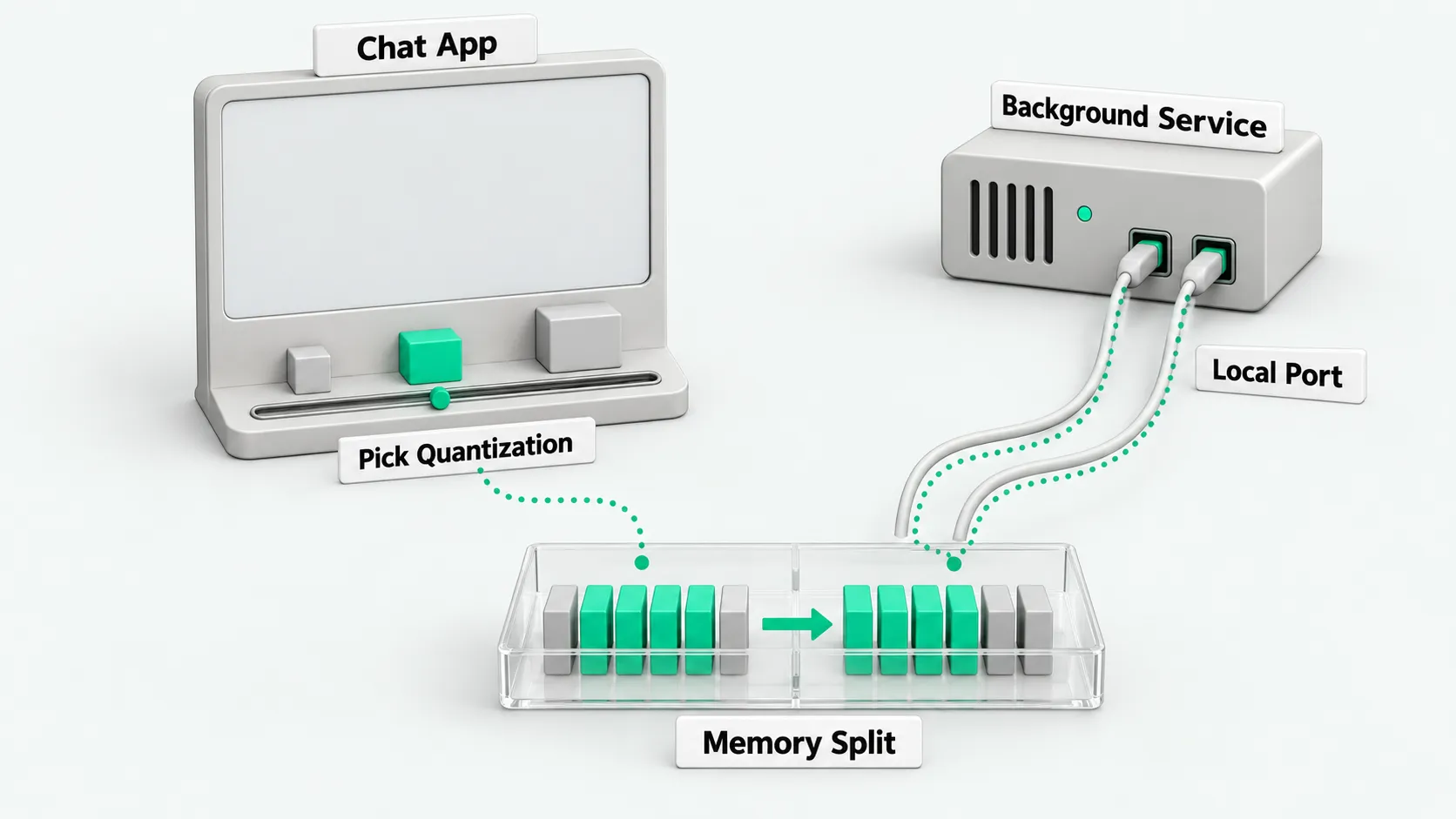
Chat and try models at the screen
According to the mlx.app guide (Chinese), LM Studio is a Mac desktop app with a built-in chat window and model browser. On Apple silicon, LM Studio runs both the MLX format optimized for Apple chips and the GGUF format based on llama.cpp. It can also start a local server for other apps to call.
Users talk to the model and test prompts directly in the window, with no terminal commands to remember. If business colleagues want to see for themselves how a local model answers, this one app is enough.
Serve scripts and agents as a background API
In the terminal, one ollama run <model name> command downloads and starts a model in Ollama, and makes the model available to other apps on the Mac. According to the Ollama API docs, the Ollama local server address is http://localhost:11434. The server is compatible with both OpenAI-style and Anthropic-style API endpoints, and local requests need no API key. Keep the Ollama background API running, and automation scripts can call this local port directly.
In the official preview examples, ollama launch claude connects a coding agent such as Claude Code to a local model. When exploring how to integrate models into the development toolchain, use the process control ideas in What Does It Take to Make Codex Part of Your Team’s Dev Workflow?. Get basic code completion working on the local API first, then decide whether to add more complex automation.
How to split the work when you install both
According to the LM Studio developer endpoint docs, the LM Studio local server provides OpenAI-compatible endpoints (/v1/chat/completions, /v1/models, and others), and the official example port is 1234. This port does not conflict with Ollama’s 11434, so the two tools can be installed and used on the same computer.
The split is to give interactive testing to the desktop window and the background service to Ollama. According to the LM Studio headless docs, LM Studio can also run without its interface. The official recommendation is the llmster daemon: run lms daemon up to start it, then lms server start to begin listening. The desktop app can also run the server at login, set in its settings. When two services run on the same machine, check how much physical memory is free first, then plan the size of the models you load.
Check memory and model format before you choose
A Mac’s unified memory sets the largest model the machine can hold. For memory requirements by quantization level, see Qwen3.8 VRAM Requirements: Which Quantization Level for 27B?. According to an Ollama blog post published on March 30, 2026, Ollama on Apple silicon moved to MLX in a preview, and it officially requires a Mac with more than 32 GB of unified memory.
On model format, LM Studio runs both MLX and the GGUF format used by llama.cpp on Apple silicon. Before choosing, compare the machine’s unified memory with the file format of the models you plan to use, and confirm the hardware meets each tool’s minimum requirement. For the full steps to pick a GGUF quantization by unified memory and run it with llama.cpp on a Mac, see Run Qwen3.8-27B Locally on Mac with Unsloth.
LM Studio: FAQ
If I only chat at the screen, do I need Ollama?
For testing a model’s answers at the screen, LM Studio alone is enough. It provides a graphical window and model library search with no commands to type, and downloading and switching models happen inside the interface. Ollama is built for command-line calls and always-on APIs. Plain interactive chat does not need a terminal setup.
Can colleagues on the local network use my local API?
You can open a local model service to colleagues on the LAN, but you need to configure security options. According to the LM Studio server CLI docs, lms server start binds only to 127.0.0.1 by default. Binding to another address exposes it beyond the machine, and the docs recommend turning on authentication. Before sharing, verify the parameters and authentication settings on your own machine, then open the port to colleagues.
Can the Ollama background API and LM Studio be installed on the same Mac?
Yes. Ollama and LM Studio can be installed and used together on one Mac. LM Studio’s official example port is 1234, and the Ollama local server address is http://localhost:11434, so the ports do not conflict. You can test different quantization levels in the LM Studio interface while Ollama serves a code API to your editor in the background. In daily use, leave memory headroom so that loading large models at the same time does not slow the system down.